01
Describe it in words
Type the scene you want — the place, the light, the mood. No design skills required.
Generate Background
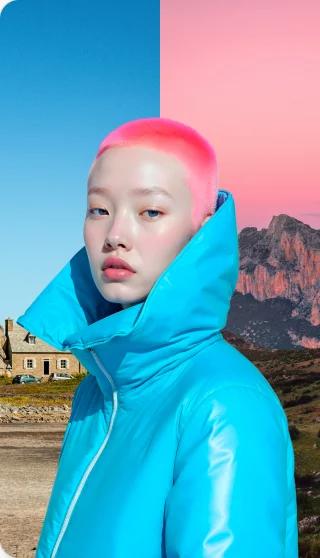
Upload a photo, describe a new scene, and Design Studio generates a fresh background around your subject — a beach, a studio, a city street.
Use a PNG or JPG image up to 20 MB.
Why Generate Background
01
Type the scene you want — the place, the light, the mood. No design skills required.
02
Your product or person stays the focus while the setting around it changes.
03
Use the result in a poster, ad or social post in Design Studio, all in the same place.
How it works
Drag and drop a PNG, JPG or JPEG, or choose a file to upload.
Write what the new background should look like, e.g. a sunny beach with soft sand.
Press Generate and see your subject in its new setting.
Save the image, or bring it into a poster, ad or social post.
Product shotsPopular
Place your product on a marble counter, a beach or a clean studio set — just by describing it.
Portraits
Swap a plain wall for a city street, a mountain view or a soft studio backdrop.
Campaigns
Put the same product in a summer, holiday or sale-themed setting for every campaign.
Use cases
Place products where customers would use them — a kitchen, a desk, a beach.
Give headshots and portraits a background that tells your story.
Reuse one photo with new scenes so your feed never looks repetitive.
Try different settings for the same product and see which one fits your audience.
Swap in holiday, summer or sale-day scenes without a new shoot.
Keep exploring
Pricing
Pick a plan that works for you.
$0
Free includes a limited number of generations. Upgrade to PRO for full access.
Start for freeFAQ
Generate Background is an image tool inside Chat Smith Design Studio. Upload a photo, describe a scene, and it creates a new background around your subject.
Say where the subject is, what is around it and what the light is like — for example, “a sunny beach with soft sand and a blue sea”.
PNG, JPG and JPEG images, up to 20 MB per file.
Yes. Change your description and generate again to compare settings.
Yes. Bring it into a poster, flyer, ad or social post in Design Studio and keep editing by chatting.
Yes. In many cases, AI-generated images created with Chat Smith can be used for marketing, branding, content creation, social media, presentations, merchandise, and other commercial projects, depending on the usage rights of the selected AI model. You are responsible for ensuring your use complies with applicable terms, policies, and laws, and does not infringe on third-party rights such as copyrights, trademarks, brand logos, public figures, or protected characters. For high-visibility commercial use, we recommend reviewing the output carefully or seeking legal advice if needed.